

Appearance
Practitioner Availability & Schedule
Practitioner Availability
Practitioner Availability controls when a practitioner is available for appointments.
Setting Up Availability
- Go to the Practitioner Availability list
- Click + Add Practitioner Availability
- Configure:
| Field | Description |
|---|---|
| Practitioner | Select the practitioner |
| Service Unit | Where they will be available (e.g., OPD Room 3) |
| Date | Specific date of availability |
| From Time / To Time | Available hours |
| Availability | Available or Not Available |

Key Behaviors
- Availability records determine which time slots appear during appointment booking
- If no availability is set, the practitioner's schedule template is used as fallback
- Unavailable entries block specific dates (e.g., leave days, conferences)
Practitioner Schedule
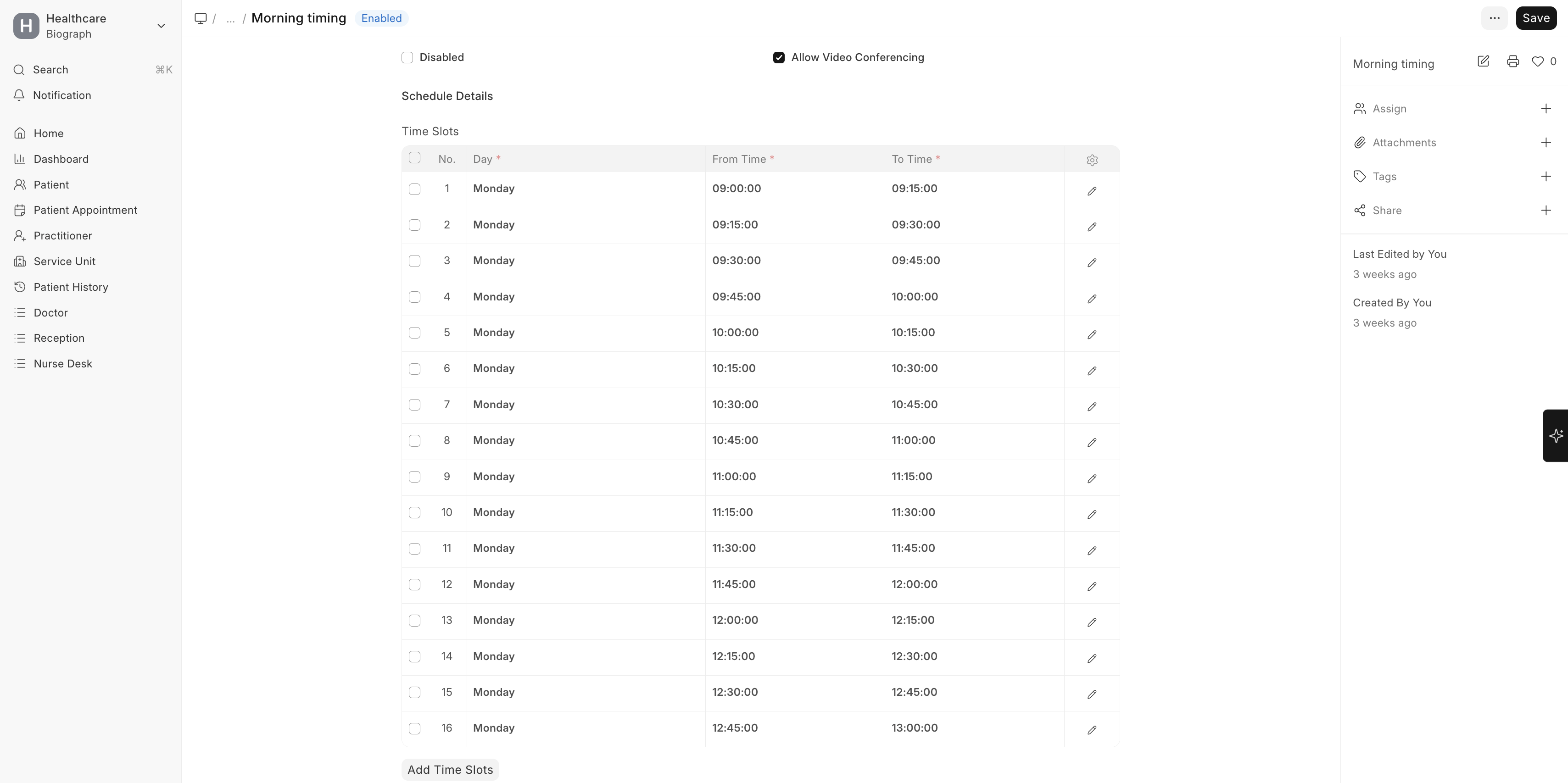
A Practitioner Schedule is a recurring weekly template that defines the practitioner's standard working hours.
Creating a Schedule
- Go to Practitioner Schedule list
- Click + Add Practitioner Schedule
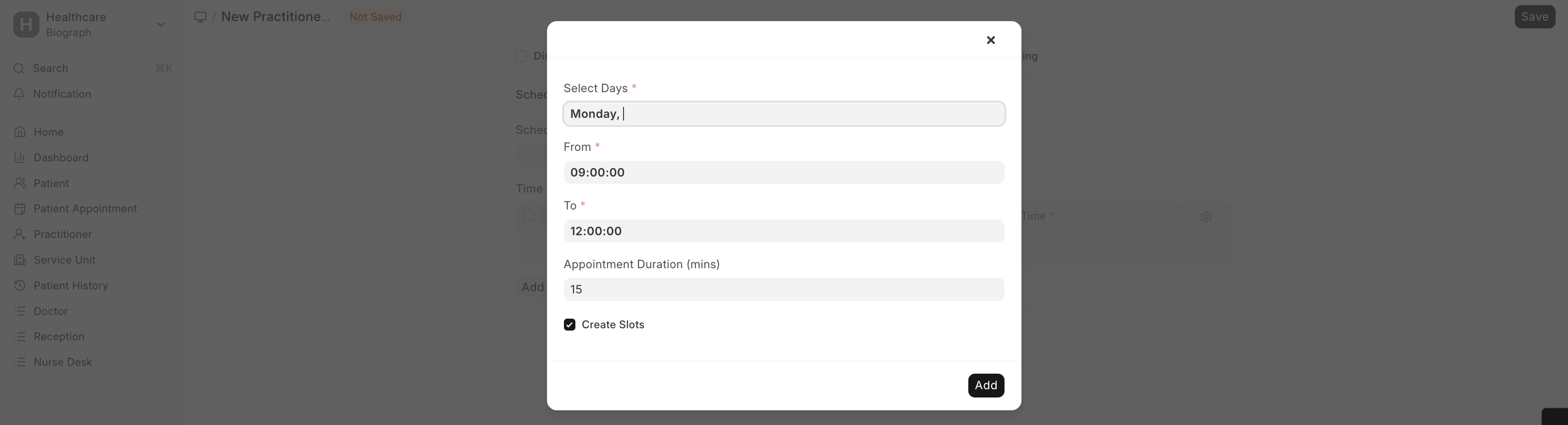
- Define time slots for each working day:
| Field | Description |
|---|---|
| Schedule Name | e.g., "Dr. Smith – Morning Schedule" |
| Time Slots | List of day + from time + to time entries |
Example Schedule:
| Day | From | To |
|---|---|---|
| Monday | 09:00 | 13:00 |
| Monday | 14:00 | 17:00 |
| Tuesday | 09:00 | 13:00 |
| Wednesday | 09:00 | 13:00 |
| Thursday | 09:00 | 13:00 |
| Friday | 09:00 | 12:00 |
Practitioner Service Unit Schedule
You can assign practitioners to specific service units on specific days:
| Field | Description |
|---|---|
| Practitioner | The practitioner |
| Schedule | The schedule template to follow |
| Service Unit | Which room/unit they will work from |
Tip: A practitioner can have multiple schedules — for example, mornings at one clinic and afternoons at another.