

Appearance
Creating a Patient Appointment
To create a Patient Appointment, go to:
Home → Healthcare → Patient Appointment
From the Appointment List
- Go to Patient Appointment list
- Click + Add Patient Appointment
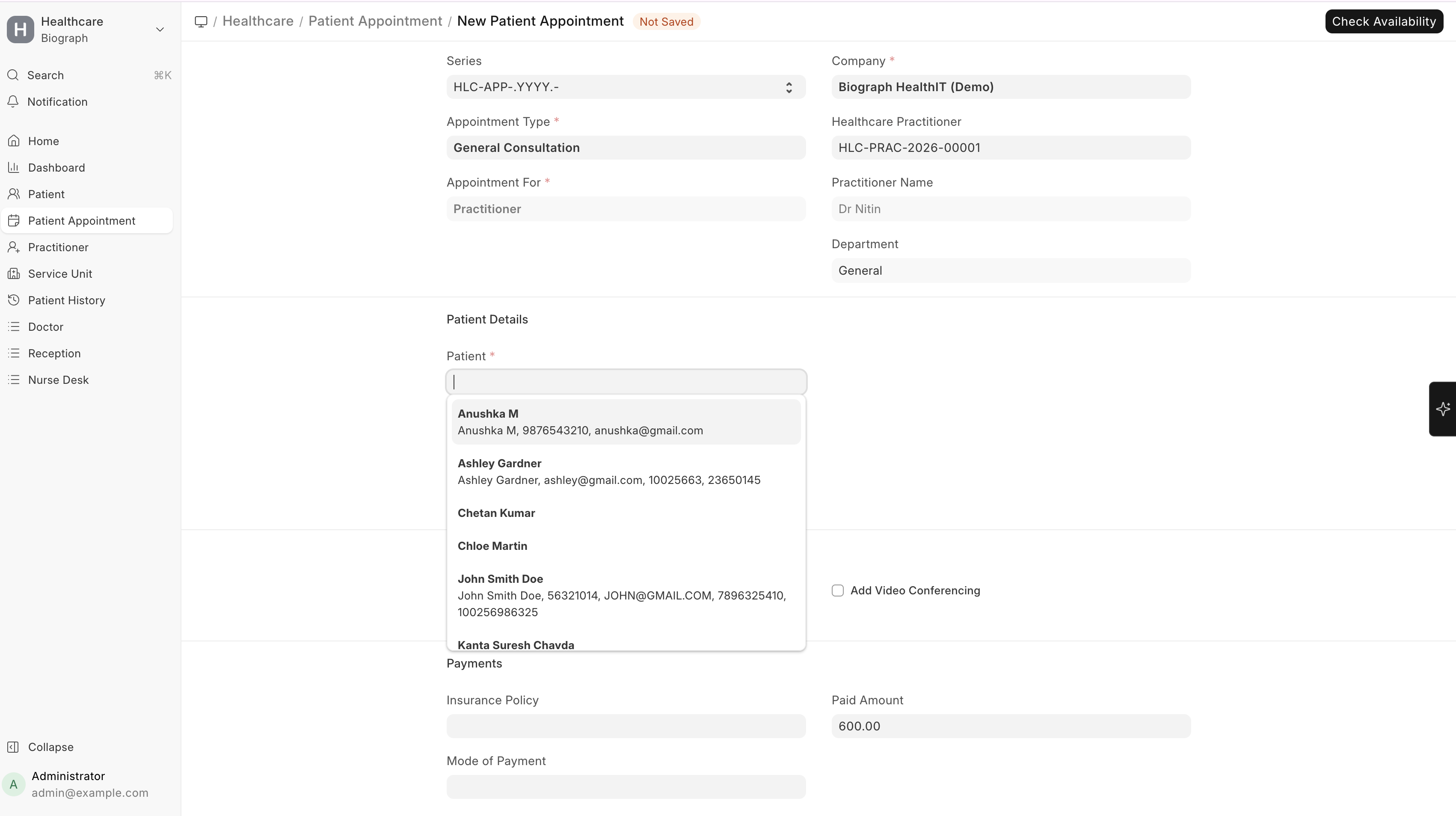
- Fill in the details:
| Field | Description |
|---|---|
| Patient | Select the patient (auto-populates patient name) |
| Appointment Type | Choose the type (General, Follow-up, Specialist, etc.) |
| Practitioner | Select the doctor/practitioner |
| Department | Medical department (auto-filled from practitioner) |
| Service Unit | Specific room or location (optional) |
| Appointment Date | Select the date |
| Appointment Time | Choose from available time slots |
| Duration | Auto-filled from appointment type, can be overridden |
| Referring Practitioner | If the patient was referred by another doctor |
| Notes | Any additional notes for the appointment |
Available Time Slots
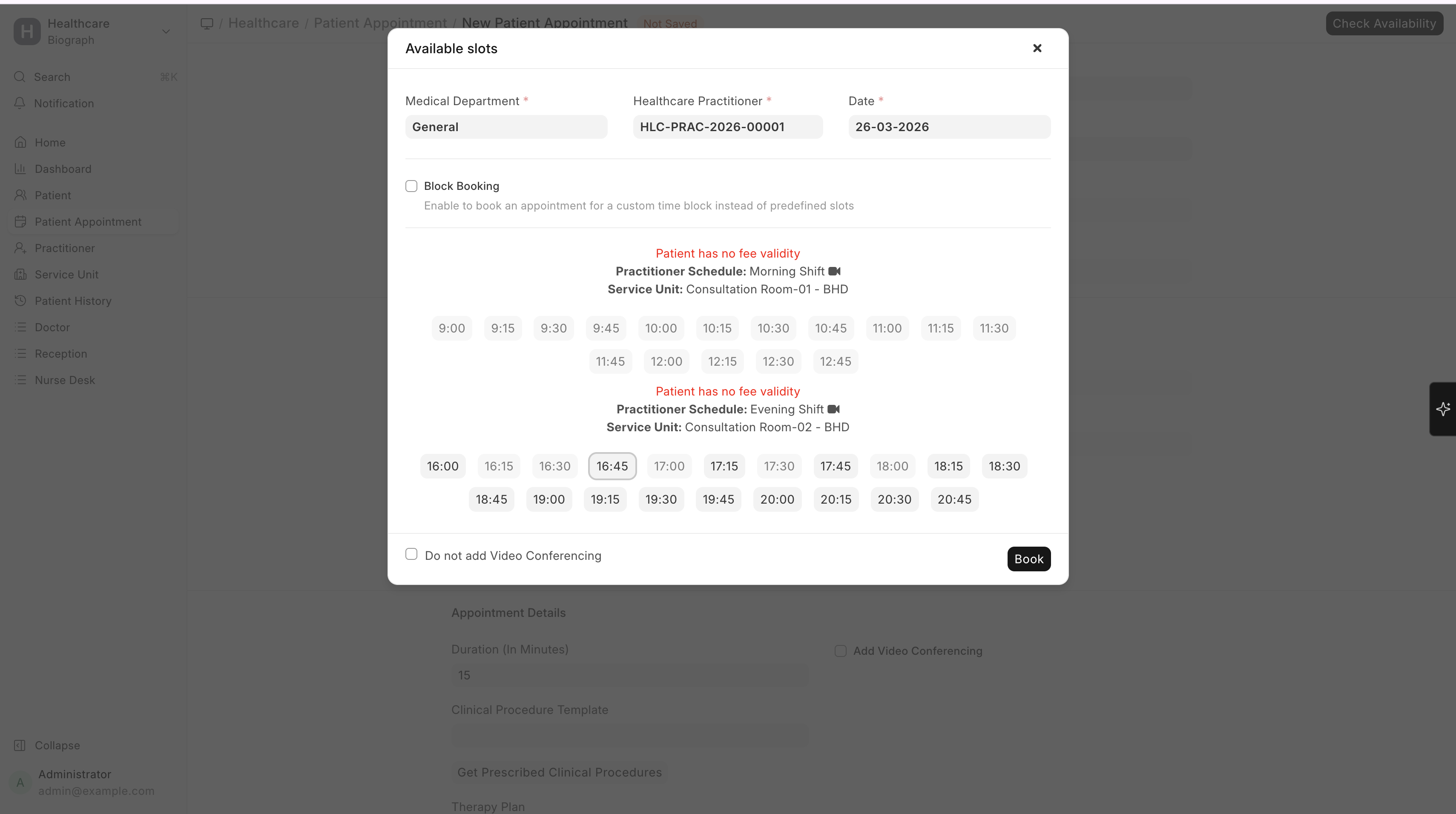
When you select a practitioner and date, the system shows available time slots based on:
- The practitioner's schedule template for that day of the week
- Any availability overrides for that specific date
- Time slots already booked by other patients are excluded
- Buffer time between appointments (if configured)