
Appearance
Initial Healthcare Configuration
To configure Healthcare Settings:
Home → Healthcare → Settings → Healthcare Settings
Navigate to Healthcare Settings from the search bar or via Setup workspace > Healthcare Settings.
Healthcare Settings (General)
| Setting | Description |
|---|---|
| Company | Select the company entity for your healthcare facility |
| Default Medical Code Standard | Choose the medical coding system (ICD-10, SNOMED CT, etc.) |
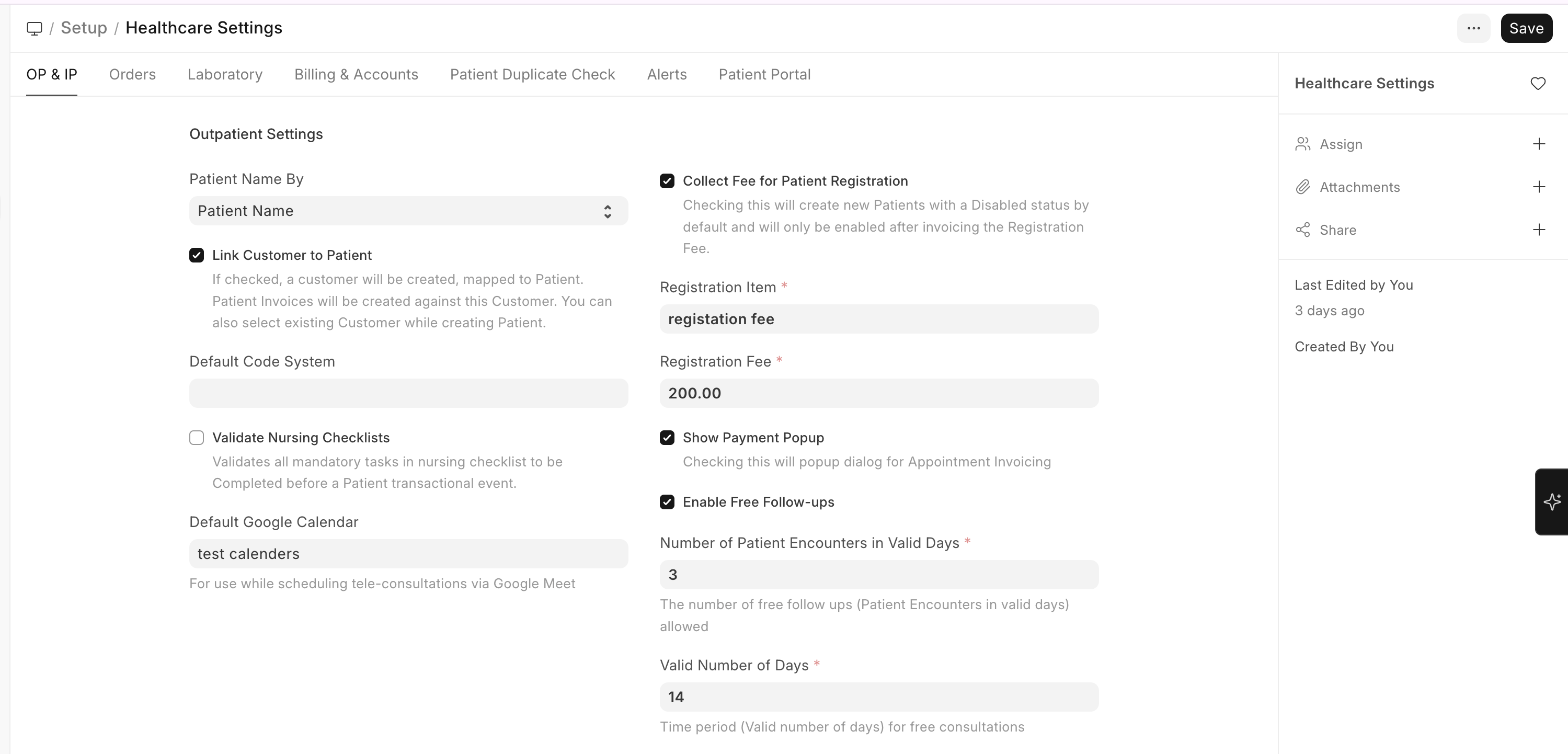
| Enable Free Follow-ups | Allow free follow-up visits within a validity period |
| Automate Appointment Invoicing | Automatically create invoices when appointments are booked |
| Link Customer to Patient | Automatically create an ERPNext Customer for each Patient |
| Collect Registration Fee | Charge a registration fee during patient creation |
| Registration Fee Amount | Set the registration fee amount |
| Manage Appointment Invoice Automatically | Auto-generate invoices on appointment creation |
Outpatient Settings
| Setting | Description |
|---|---|
| Default Appointment Duration | Standard consultation time (in minutes) |
| Appointment Reminder | Enable automated appointment reminders |
| Send Registration Message | Notify patients on registration via SMS/email |
| Patient Encounter Required Fields | Configure mandatory fields for consultations |
Inpatient Settings
| Setting | Description |
|---|---|
| Allow Discharge Despite Unbilled Items | Whether to permit discharge with pending bills |
| Auto Create Inpatient Medication Order | Automatically create medication orders from prescriptions |

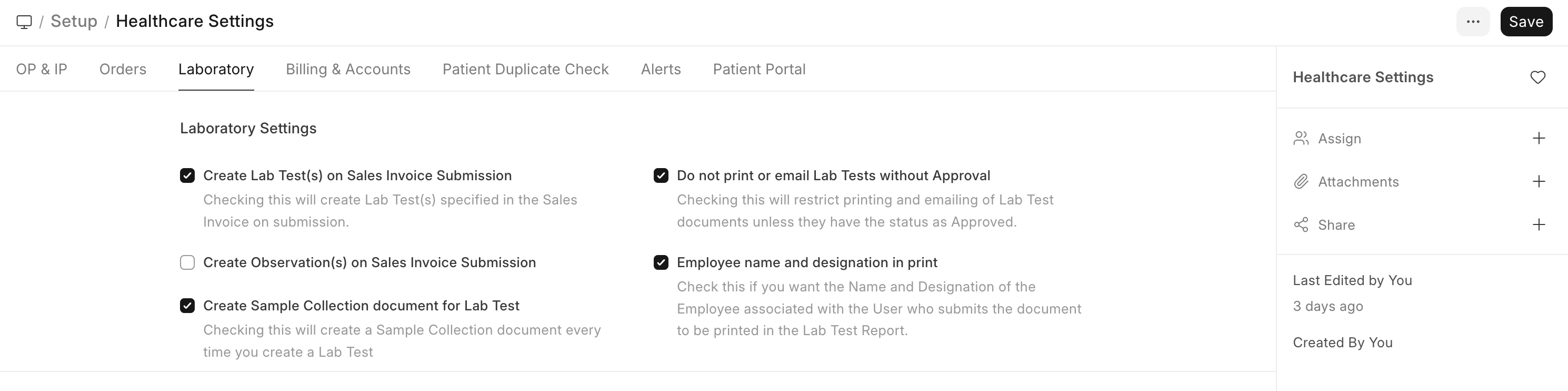
Laboratory Settings
| Setting | Description |
|---|---|
| Create Lab Test on Encounter Submit | Auto-create lab tests when encounter is submitted |
| Create Sample Collection on Lab Test Creation | Auto-trigger sample collection workflow |
| Employee Name in Lab Test Report | Show employee name or practitioner name in reports |
Billing & Accounts Setup
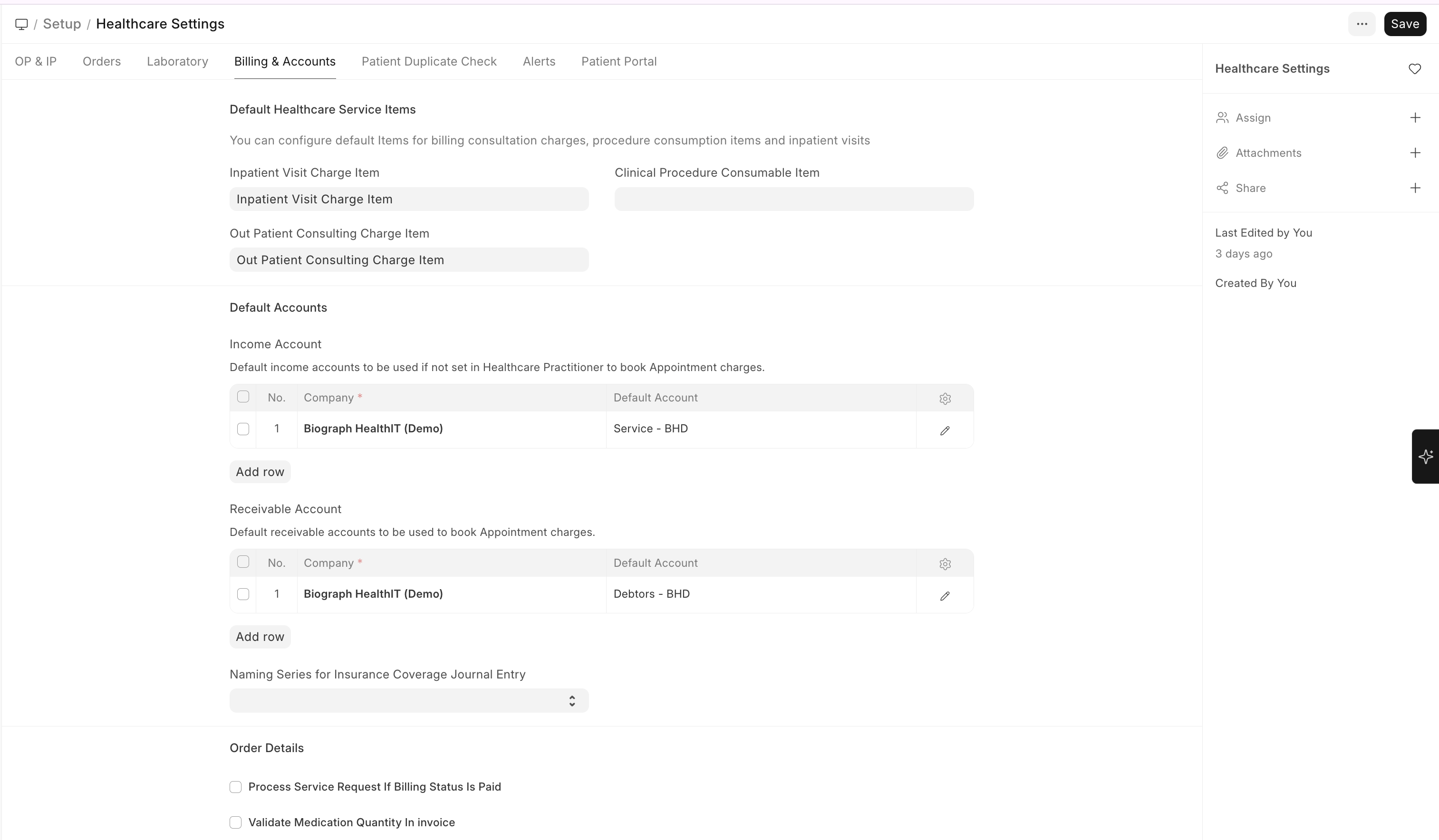
Fossible HIS integrates with ERPNext's Accounts module for all financial operations:
| Configuration | Where to Set |
|---|---|
| Income Account | Healthcare Settings > Default accounts |
| Receivable Account | Healthcare Settings > Default accounts |
| Service Item for Consultations | Mapped via Item master in ERPNext |
| Tax Templates | Standard ERPNext tax setup applies |
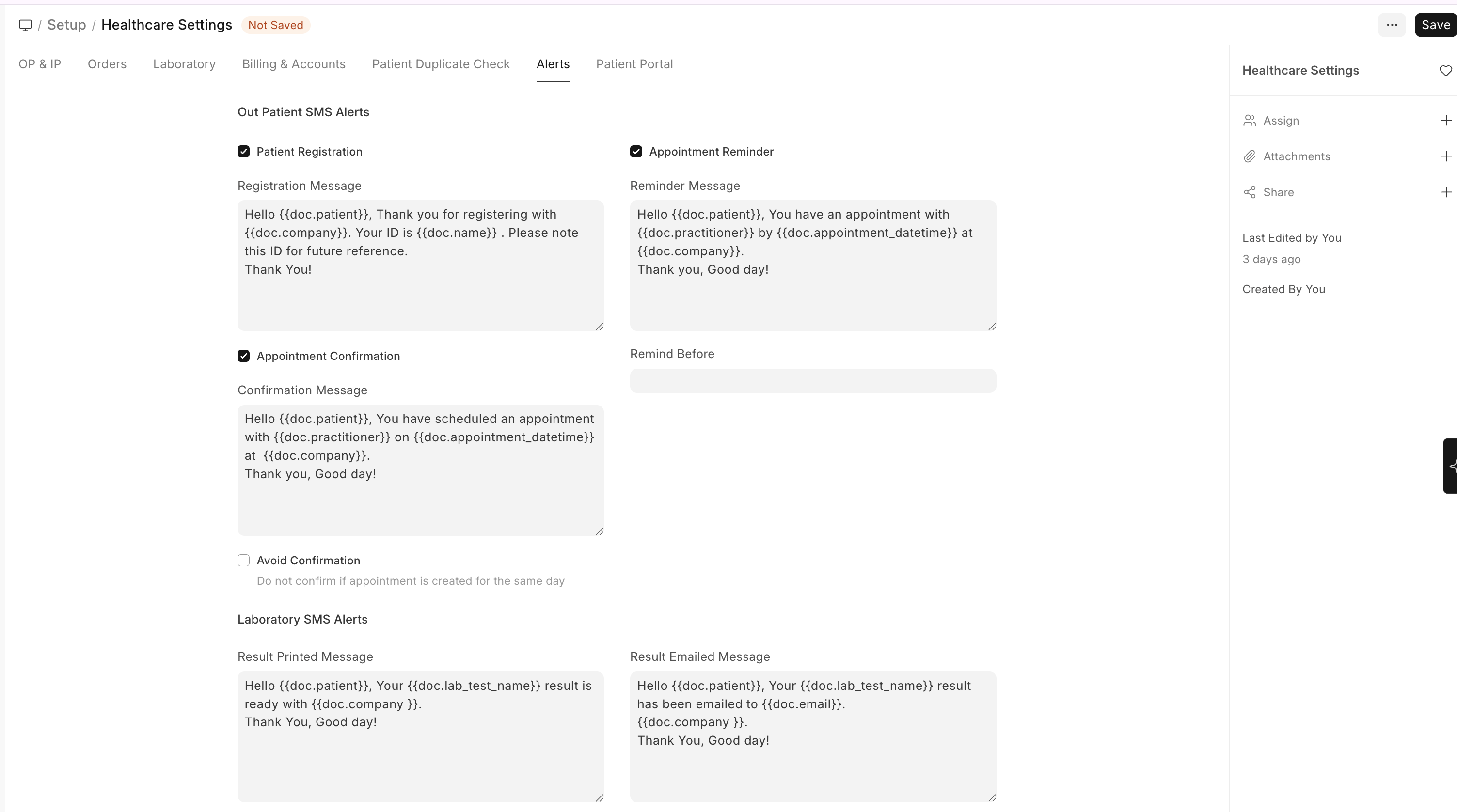
Notification / SMS Settings
| Setting | Description |
|---|---|
| Appointment Confirmation | Send confirmation when appointment is created |
| Appointment Reminder | Send reminder before appointment time |
| Registration Notification | Notify on new patient registration |
Note: SMS and email notifications require configuring the ERPNext Email/SMS settings first.
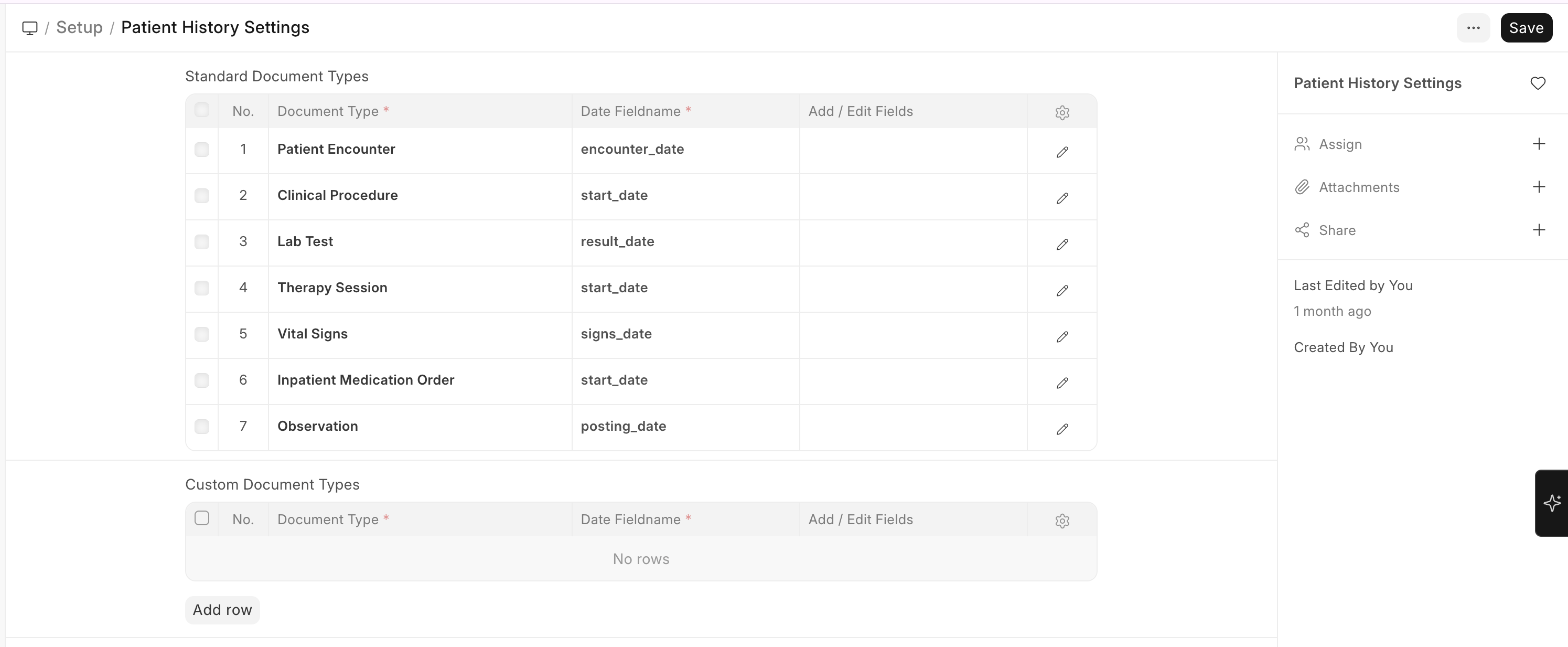
Patient History Settings
To configure Patient History Settings:
Home → Healthcare → Settings → Patient History Settings
Navigate to Patient History Settings to configure which documents appear in the patient's medical timeline:
- Standard Document Types — Enable/disable visibility of Encounters, Lab Tests, Vital Signs, Procedures, etc. in patient history
- Custom Document Types — Add any custom doctypes to appear in the patient timeline
- Date field and patient link field must be specified for custom document types